Logic Pro Using MIDI Environment to Filter Out Spe
Logic Pro: Using MIDI Environment to Filter Out Specific MIDI CC Inputs
-
Open the MIDI Environment Window by pressing
command+0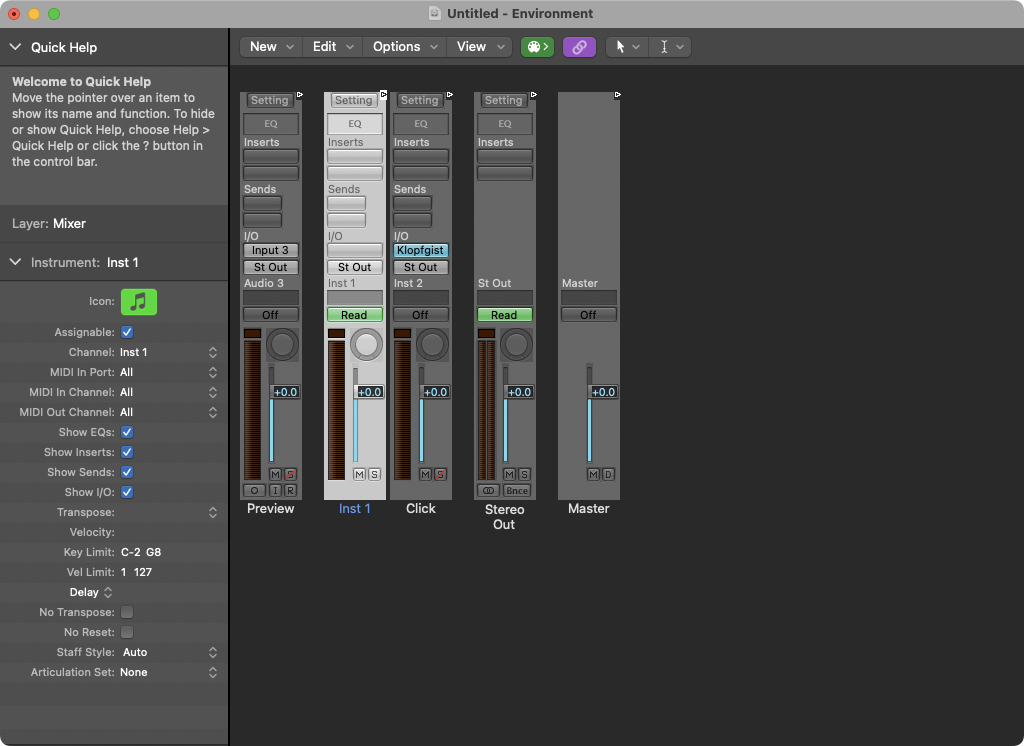
-
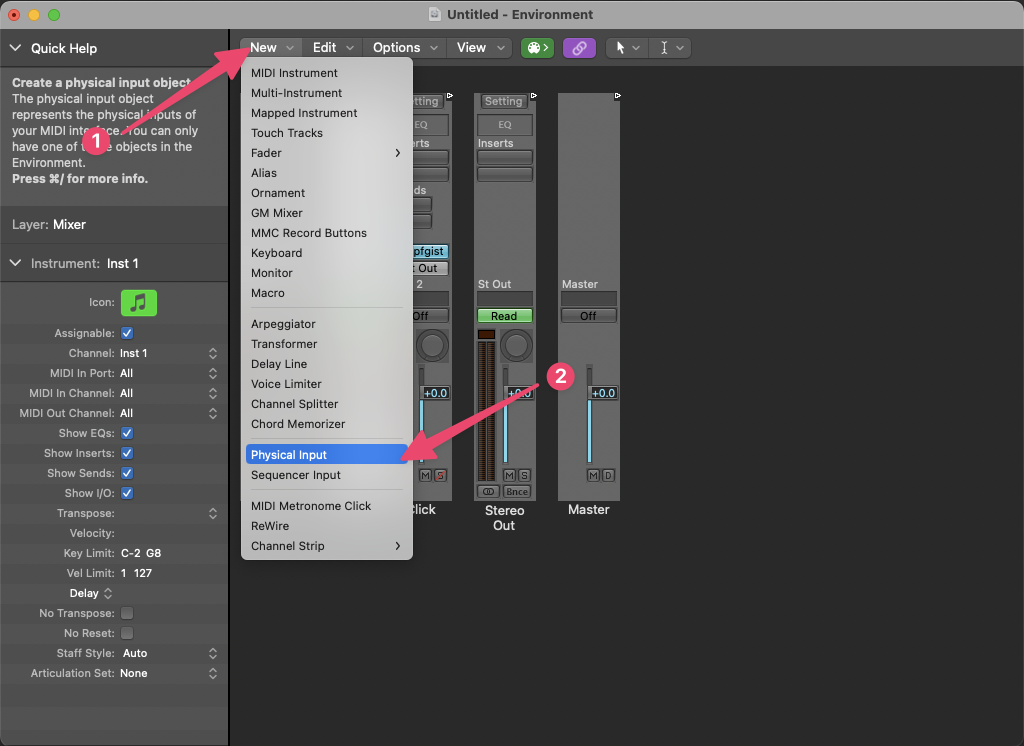
Add a Physical Input module via the New dropdown menu.
-
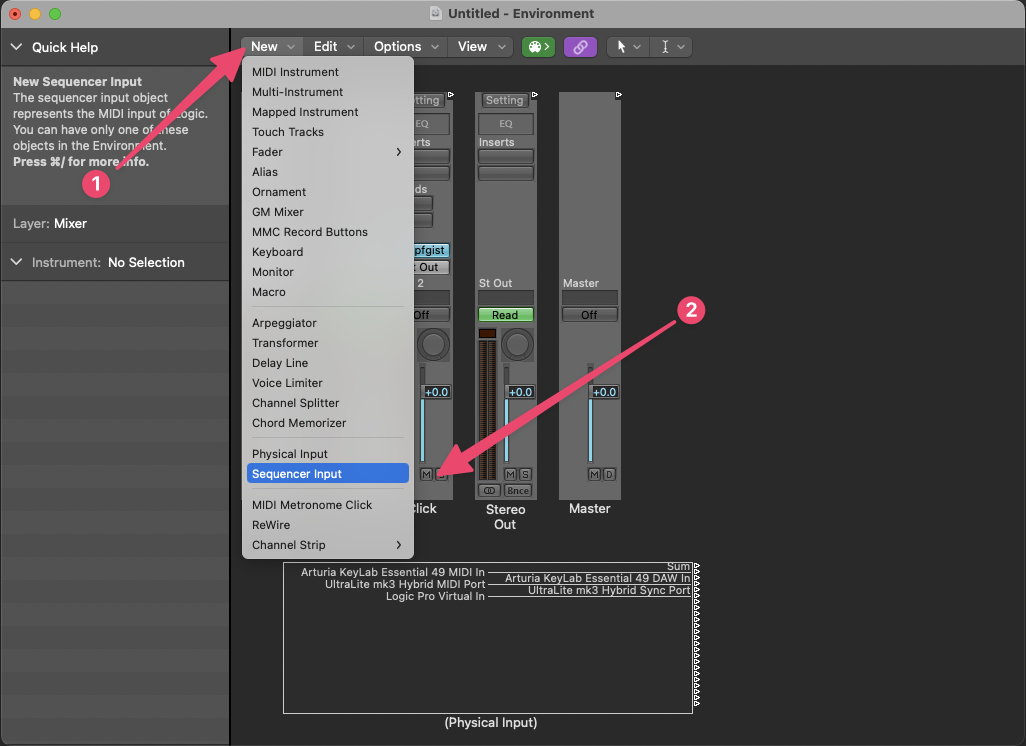
Add a Sequencer Input module via the New dropdown menu.
-
Add a Transform module via the New dropdown menu.
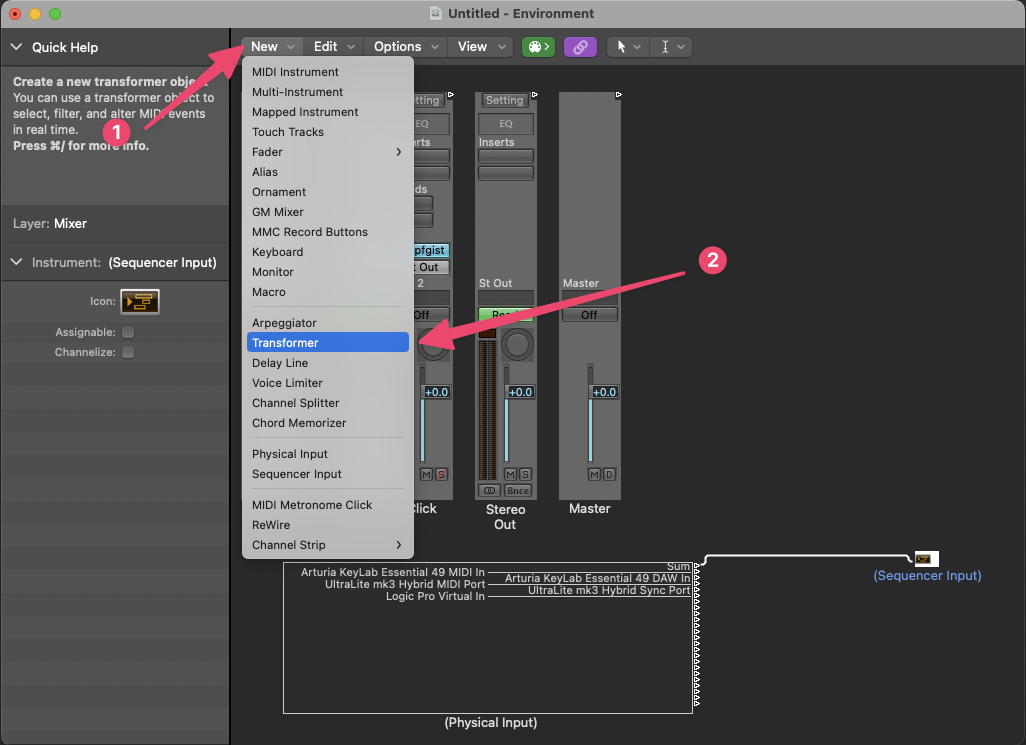
-
Disconnect all the the existing patch cables by clicking on each cable and pressing the
deletekey on your computer’s keyboard.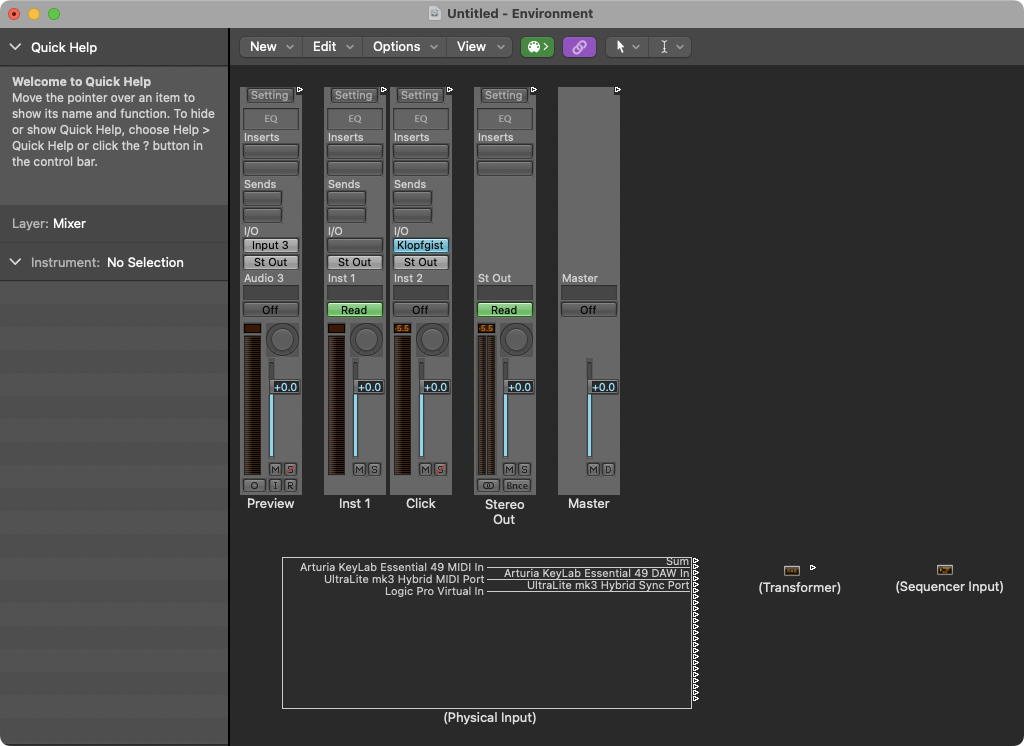
-
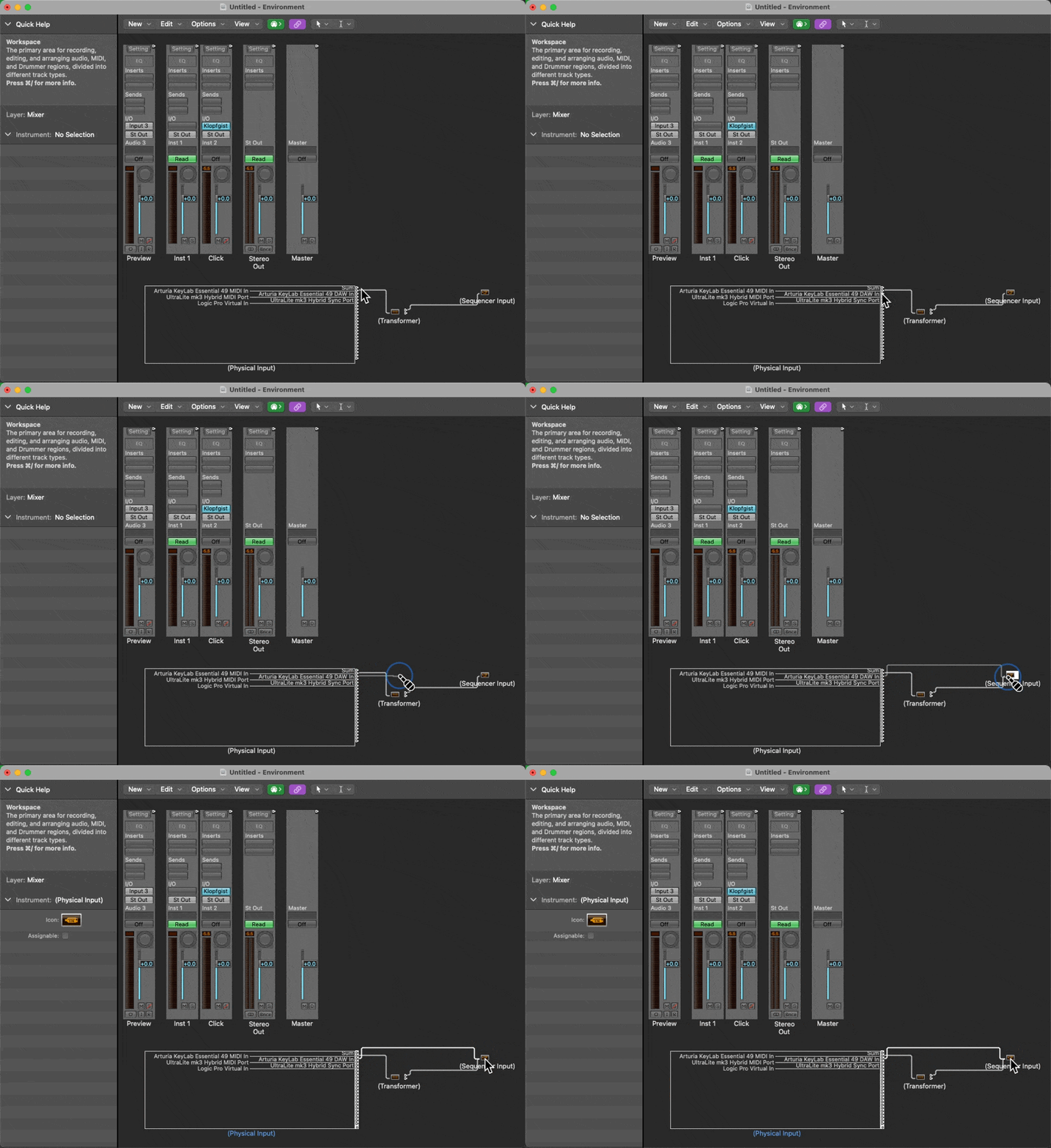
Connect the output triangle on the Physical Input module of the physical MIDI controller that you want to filter out specific MIDI messages from to the Transform module. In this example, I will connect my “Arturia KeyLab Essential 49 MLIDI In” to the Transform module.
-
Then connect the output of the Transform module to the Sequence Input module.
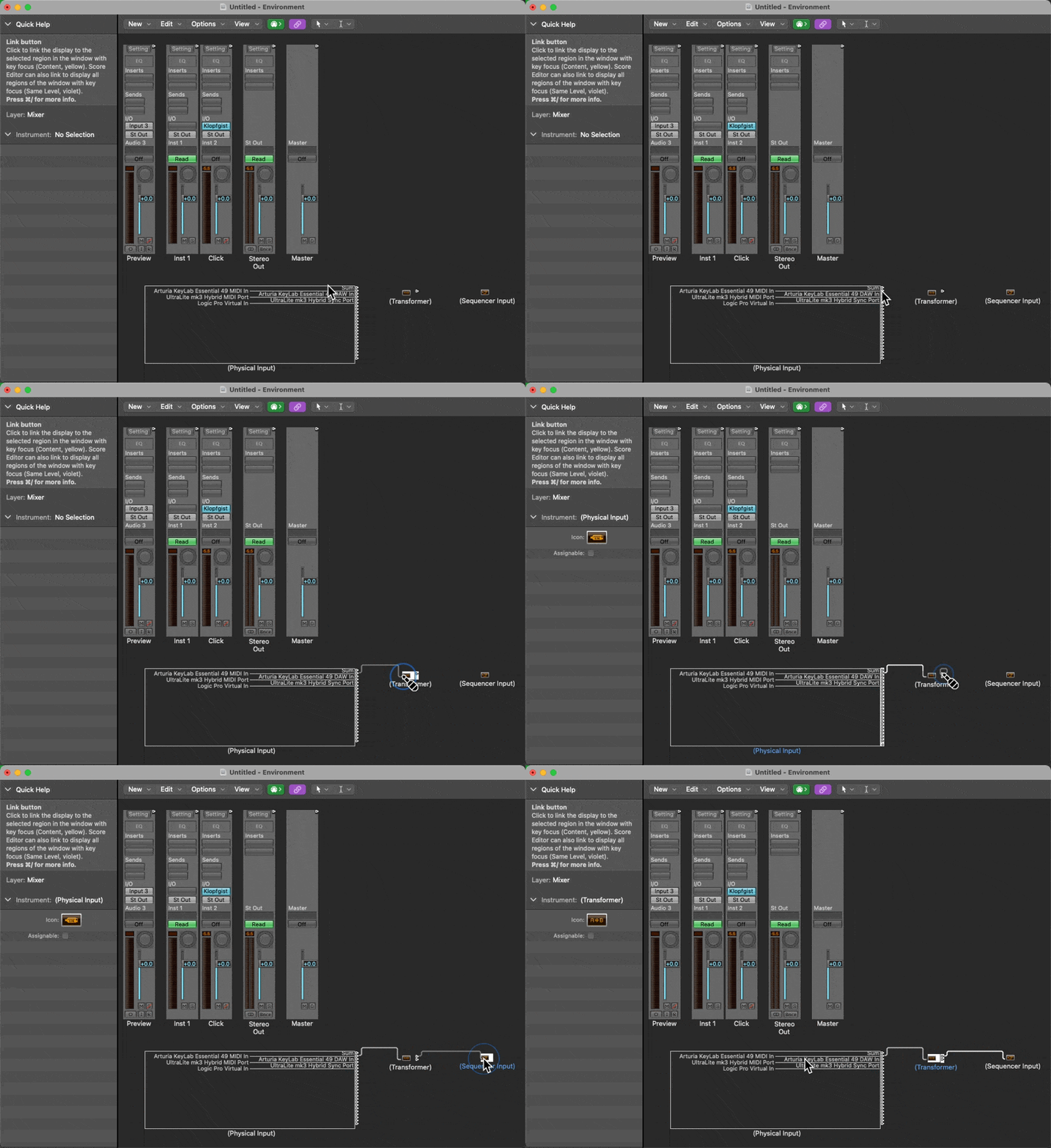
-
Now, open the Transform module by
double-clickingon it. -
Adjust the Transform module to remove the unwanted CC message. For this example, I will remove all CC1 messages sent on all channels from my “Arturia KeyLab Essential 49 MIDI Port”.
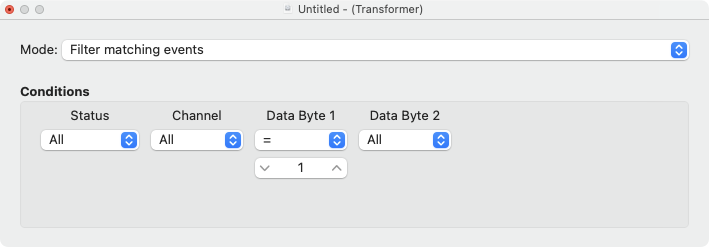
-
If you have any additional physical controllers that you do not want to filter MIDI data from, connect their outputs on the Physical Input module directly to the Sequencer Input module.