How to allow apps downloaded from anywhere in Mac
How to allow apps downloaded from anywhere in Mac | Trend Micro Help Center
LAST UPDATED: OCT 22, 2021
Being an Apple user, you would know that Apple has always been quite strict when it comes to installing third-party apps on your Mac. The inbuilt security feature of their system, the Gatekeeper, with the update of Mac OS Mojave has gotten even more stringent than before now, in keeping you within the bounds of Apple’s App Store.
Although Gatekeeper’s security restricts users to the use of apps only downloaded from App Store or identified developers, there are ways you can enjoy the programs of your choice even when they are not on Apple or Apple trusted platforms.
We firmly advised that the option may only be used by the advanced Mac users, though. Gatekeeper is Mac’s security solution, and it is there for a purpose. There are genuine threats to your system when in use and it requires constant protection. When played with by inexperienced hands, it can make the system vulnerable to malware and data leak threats. Thus, before we go into the detailed guide to disabling the feature regarding third-party downloads, let us understand why it is essential.
About Gatekeeper and Its Importance
A Mac security feature, Gatekeeper was first introduced with OS X Mountain Lion back in 2012. It keeps a check on all the malware and other threats emanating from misbehaving apps downloaded from the Internet. Initially, this feature offered three settings for downloadable content. This included, anywhere (the most lenient option), App Store and identified developers (a secure setting), and the App Store only (the highest security feature).
More recently, with the macOS Sierra update specifically, Apple has limited the settings to the last two options. This was done in keeping view of the growing number of threats and high numbers of reported security breach incidents in the past.
While a good measure, it restricted many of the power Mac users in their experience of operating on the system. Unknown to many though, not all is lost. Mac sports a hidden pathway for such advanced users to change Gatekeeper’s settings and allow third-party apps to operate on their macOS Mojave. Let’s take a look.
Allow Applications Downloaded From Anywhere
The option for allowing applications downloaded from anywhere is hidden by default in Gatekeeper on macOS Mojave, and can be changed if required:
-
Open Terminal. Go to Applications > Utilities > Terminal.
-
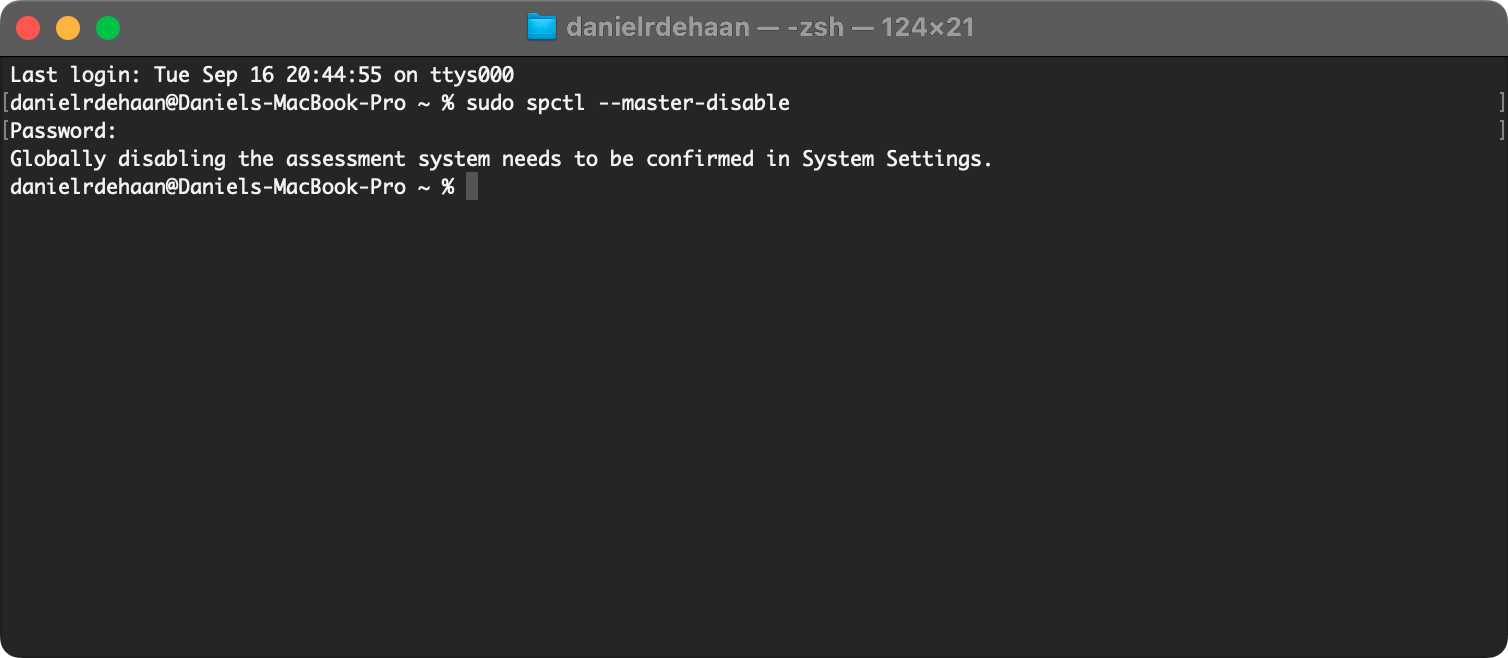
Paste the following command: sudo spctl —master-disable, then press RETURN.
-
Enter your system password.
-
Open Security & Privacy. Go to System Preferences > Security & Privacy.
-
Go to the General tab. You will find the Anywhere option.
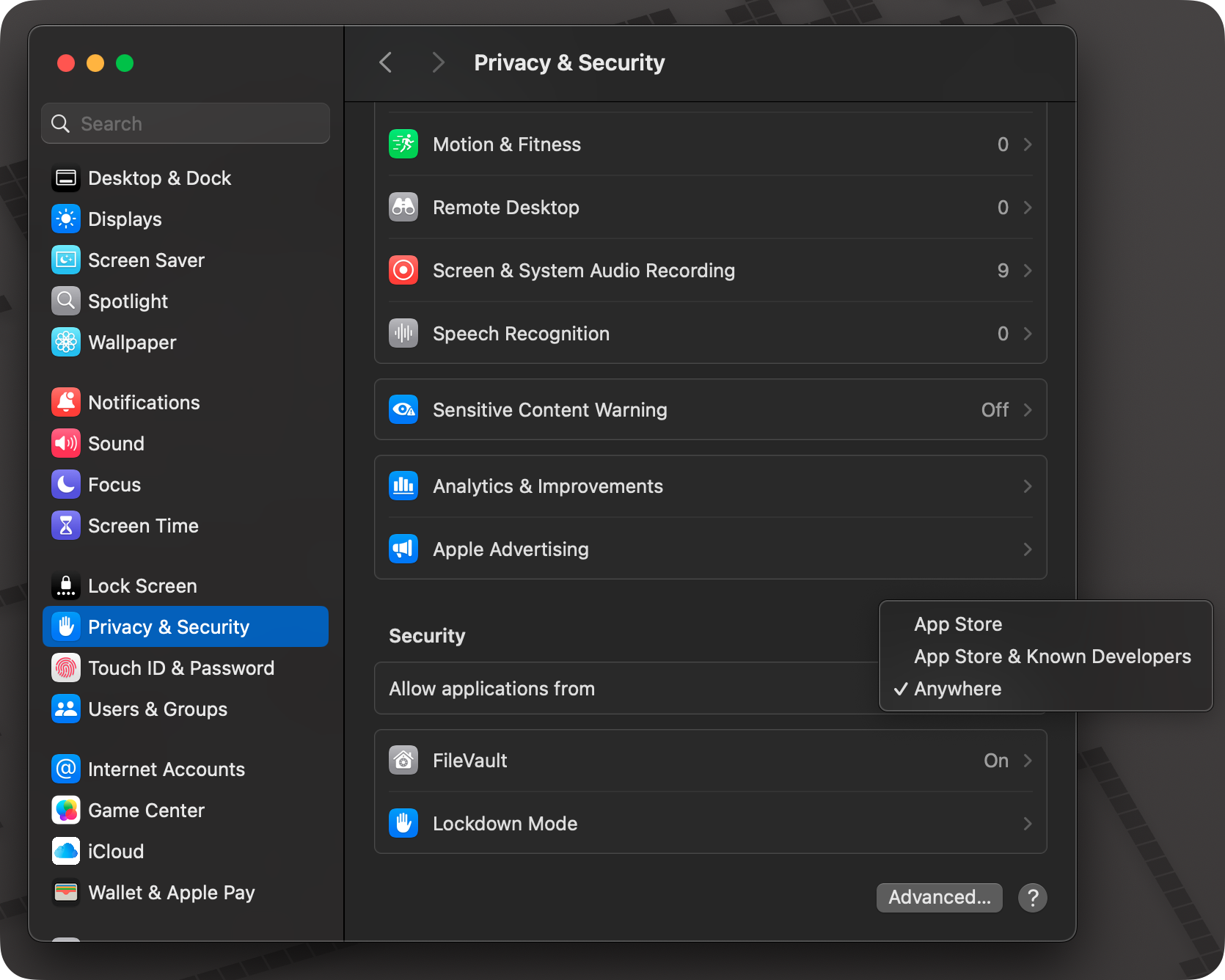
Now you can open and launch apps from anywhere on macOS Mojave. Please note that this change will turn off Gatekeeper, and it is not suitable for most Mac users. Allowing applications from anywhere, such as unidentified developers, can make you Mac susceptible to some malware and junk software, which should be avoided by all its users. Unless you can deal with the risks above mentioned, please use this feature carefully.
Returning to Default Gatekeeper Security
Once you are done using an app (You will never use it anymore), you can always revert to the default strict Gatekeeper settings. This will allow only the applications downloaded from the Mac App Store or identified developers on the system.
- Open Terminal. Go to Applications > Utilities > Terminal.
- Paste the following command: sudo spctl —master-enable, then press RETURN.
- Enter your system password.
This will make macOS Gatekeeper return to a strict default state that prevents random applications from starting.
Each Mac user should leave this feature enabled in the default state. If you are not able to decide whether the apps are legitimate or not, you definitely not change this option.