Logic Pro Import & Sync a Video
Logic Pro: Import & Sync a Video
- Table of Contents
Summary
-
Find the SMPTE start time and frame rate of your video.
-
Create a new project with the correct frame rate and a sample rate of 48 kHz.
-
Match measure 3’s SMPTE value to the first frame of your video file.
-
Move the movie region and extracted audio file to measure 3.
-
Confirm that Logic’s SMPTE and that displayed over the video match from beginning to end.
Step-by-Step Guide
-
Using a program such as QuickTime Player or VLC, open your video file and make note of the starting SMPTE value and the video’s frame rate.
-
To find the video’s frame rate using Quicktime, open the video file using Quicktime, then show the
Movie Inspectorwindow by navigating to theMenu Bar > Window > Show Movie Inspector. There you will find the video’s frame rate shown as “FPS.”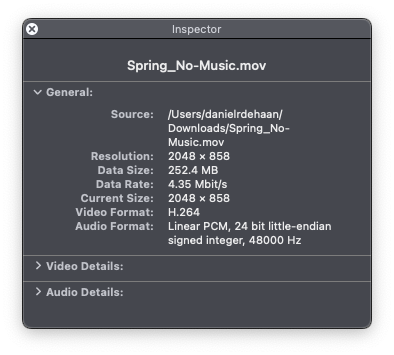
-
To find the video’s frame rate using VLC: Open the video file using VLC, then open the Media Information… window by navigating to the
Menu Bar > Window > Media Information...The video’s frame rate is found on theCodec Detailspage of theMedia Information...window.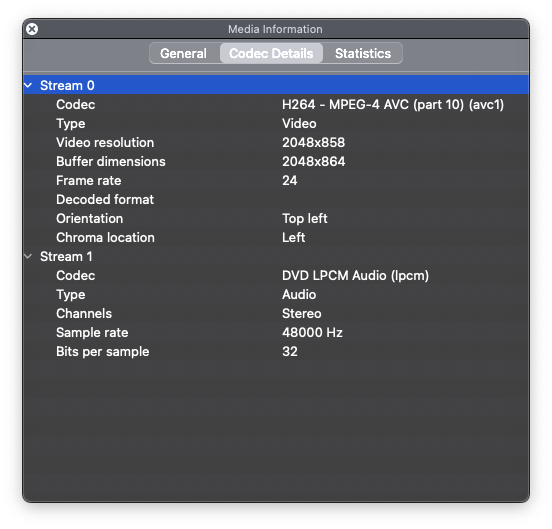
-
-
Next, open Logic Pro X.
-
If Logic’s
Choose a Projectwindow does not appear after the application launches…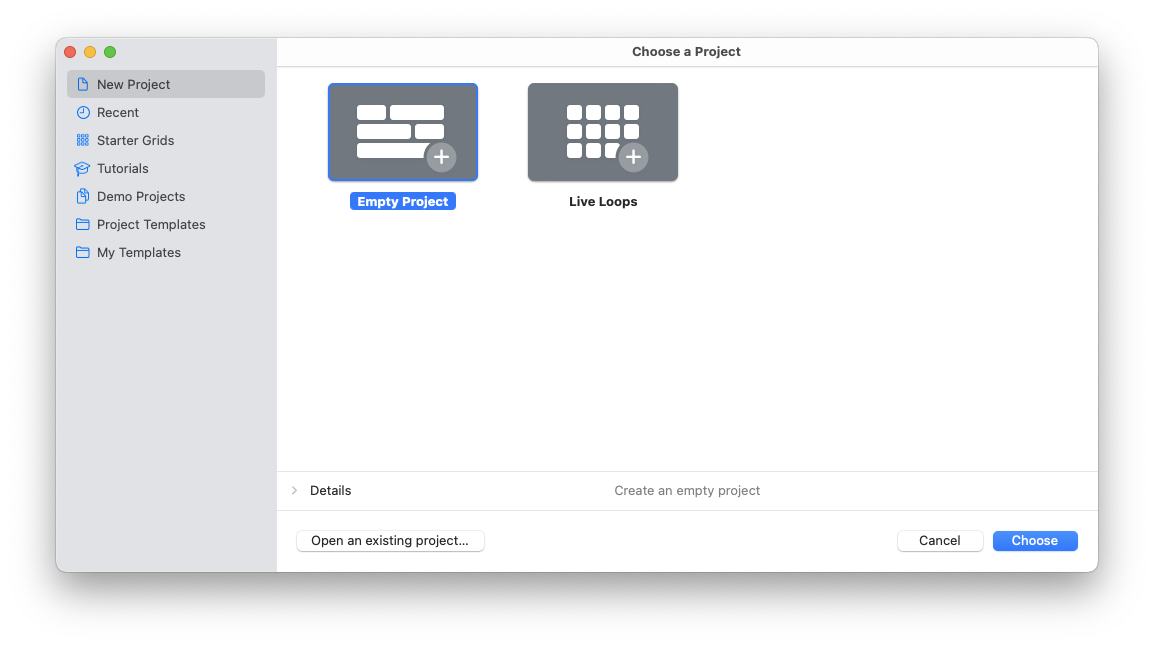
…open it by navigating to the
Menu Bar > File > New from Template… -
In the
New Projectpage of theChoose a Projectwindow select theEmpty Projector another template you have already created. -
Before clicking
Chooseuse theDetailszone to set your project’sSample Rateto48 kHzand to adjust theFrame Rateto match the video you will soon import. If the Details zone is not visible, expose it by clicking the triangle located in the lower left corner of theChoose a Projectwindow next to the word “Details.”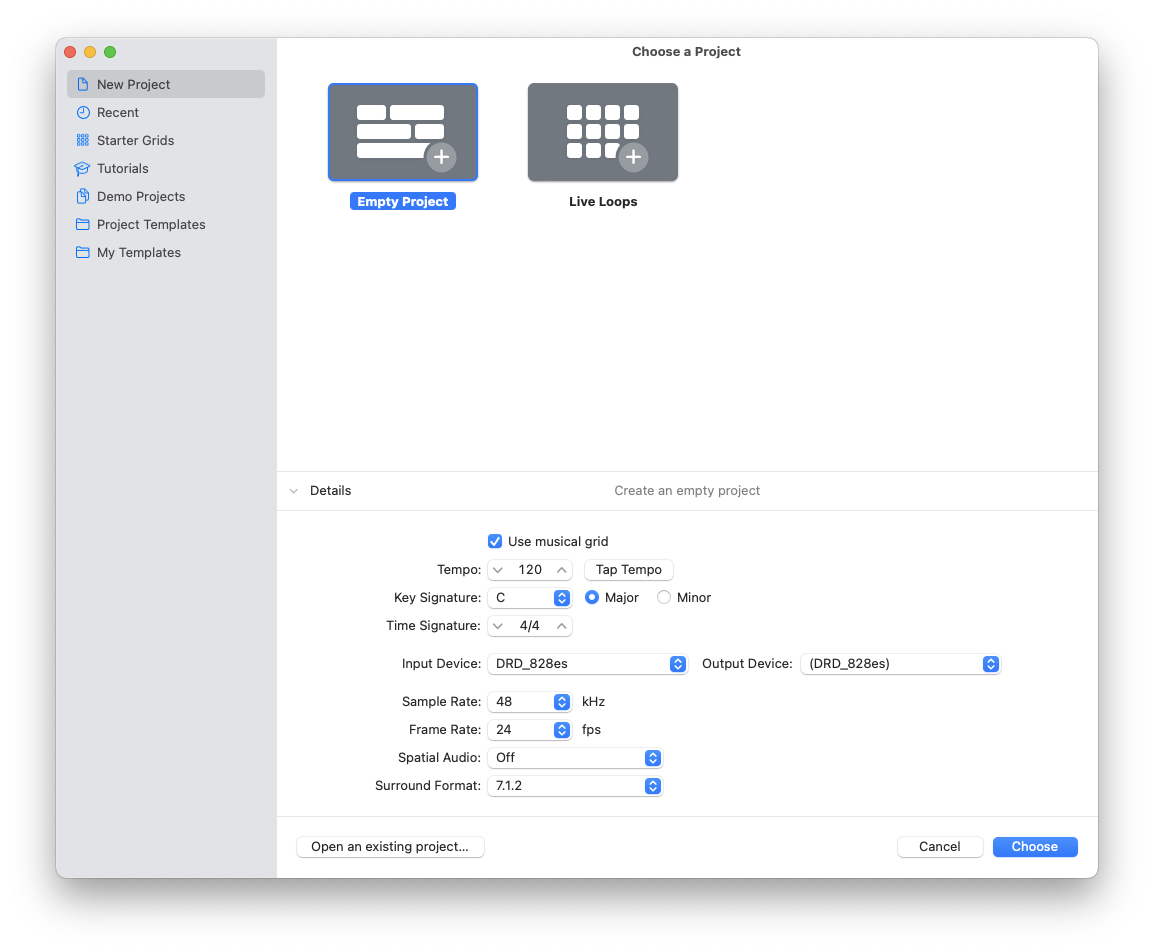
-
Now click
Choosein the lower right corner of theChoose a Projectwindow to create your new project. -
Logic will prompt you to create a track. To avoid Logic creating more than just the selected track type, create an
Audiotrack, and make sure that none of the options are checked in theDetailszone of theCreate Trackwindow.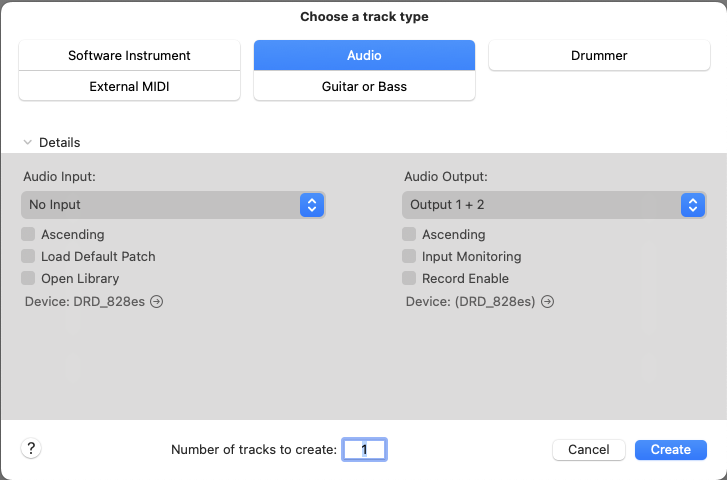 📝 Note
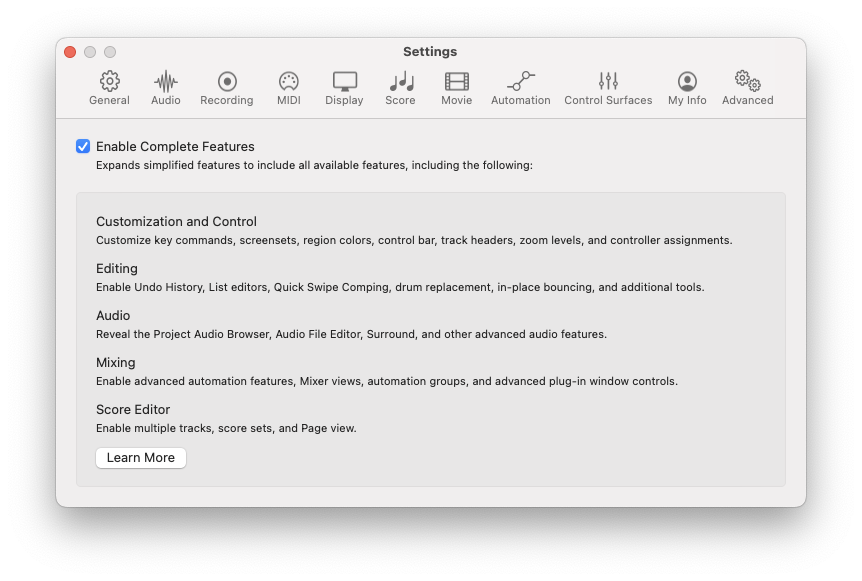
-
Next, set measure three of your project to match the SMPTE value of the first frame of your video file by navigating to the
Menu Bar > File > Project Settings > Synchonization…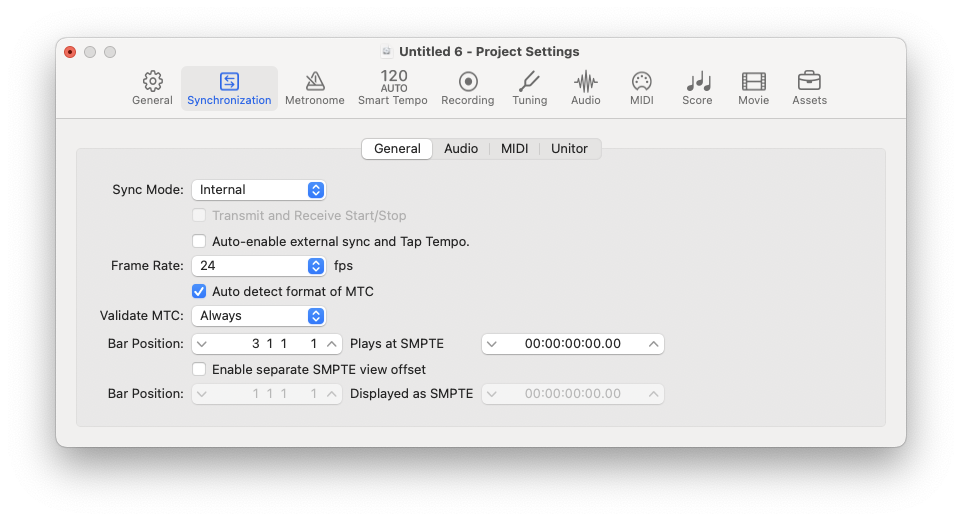
-
Close the
Project Settingswindow, and import your video file by navigating to theMenu Bar > File > Movie > Open Movie… -
Place Logic’s Edit/Playback Cursor at the start of measure 3 so that in the next step, when we import the movie file, the movie begins at measure 3.
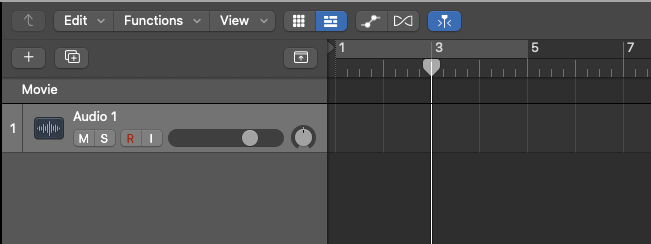
-
In the
Open Moviedialog box that appears, select both options to open the movie and to extract the movie’s embedded audio to a separate track within your Logic project.
-